Overview
The Nuxeo Content Intelligence Connector connects your Nuxeo repository directly to Hyland Content Intelligence (CIC), bringing automated AI enrichment to your everyday content workflows without custom coding.
Knowledge Enrichment (KE) for Nuxeo brings AI‑powered understanding to your content by automatically classifying documents, extracting key entities, and generating summaries and image descriptions. With simple, one‑click actions in the Nuxeo UI, users can enrich documents and images and immediately benefit from better search, discovery, and downstream automation.
This guide provides a high‑level, end‑user‑friendly overview of what Knowledge Enrichment does, what file types are supported, and how customers can use these features in day‑to‑day work.
What Knowledge Enrichment Delivers
Knowledge Enrichment enhances your content with machine‑generated metadata using AI models for both text and images.
Key Benefits
- Automatically classify documents and images
- Extract meaningful tags and named entities
- Generate summaries and descriptions without manual effort
- Improve search, discovery, and downstream workflows
- Simple, on‑demand actions directly in the Nuxeo UI
Supported File Types
Documents
Currently supported: * PDF and docx documents
Available enrichment actions:
- Document Classification
- Named Entity Recognition (Text)
- Text Summarization
Images
Currently supported: * JPEG / JPG images
Available enrichment actions:
- Tag and Summarize Action
Where Users See Knowledge Enrichment in Nuxeo
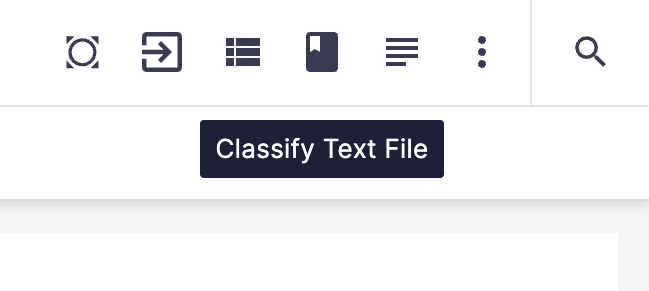
All Knowledge Enrichment capabilities are available as action buttons in the document preview screen.
- Buttons appear automatically based on document type (Document or Image)
- Located in the top‑right action area of the document view
- Each button triggers an AI enrichment process and saves results as metadata
Configuration (nuxeo.conf)
Add the necessary API endpoints and credentials to your nuxeo.conf file:
nuxeo.hyland.cic.endpoint.auth=<URL for authentication endpoint>
nuxeo.hyland.cic.endpoint.contextEnrichment=<URL for context enrichment endpoint>
nuxeo.hyland.cic.endpoint.dataCuration=<URL for data curation endpoint>
nuxeo.hyland.cic.enrichment.clientId=<secret>
nuxeo.hyland.cic.enrichment.clientSecret=<secret>
nuxeo.hyland.cic.datacuration.clientId=sc-<secret>
nuxeo.hyland.cic.datacuration.clientSecret=<secret>
Document Use Cases (PDF)
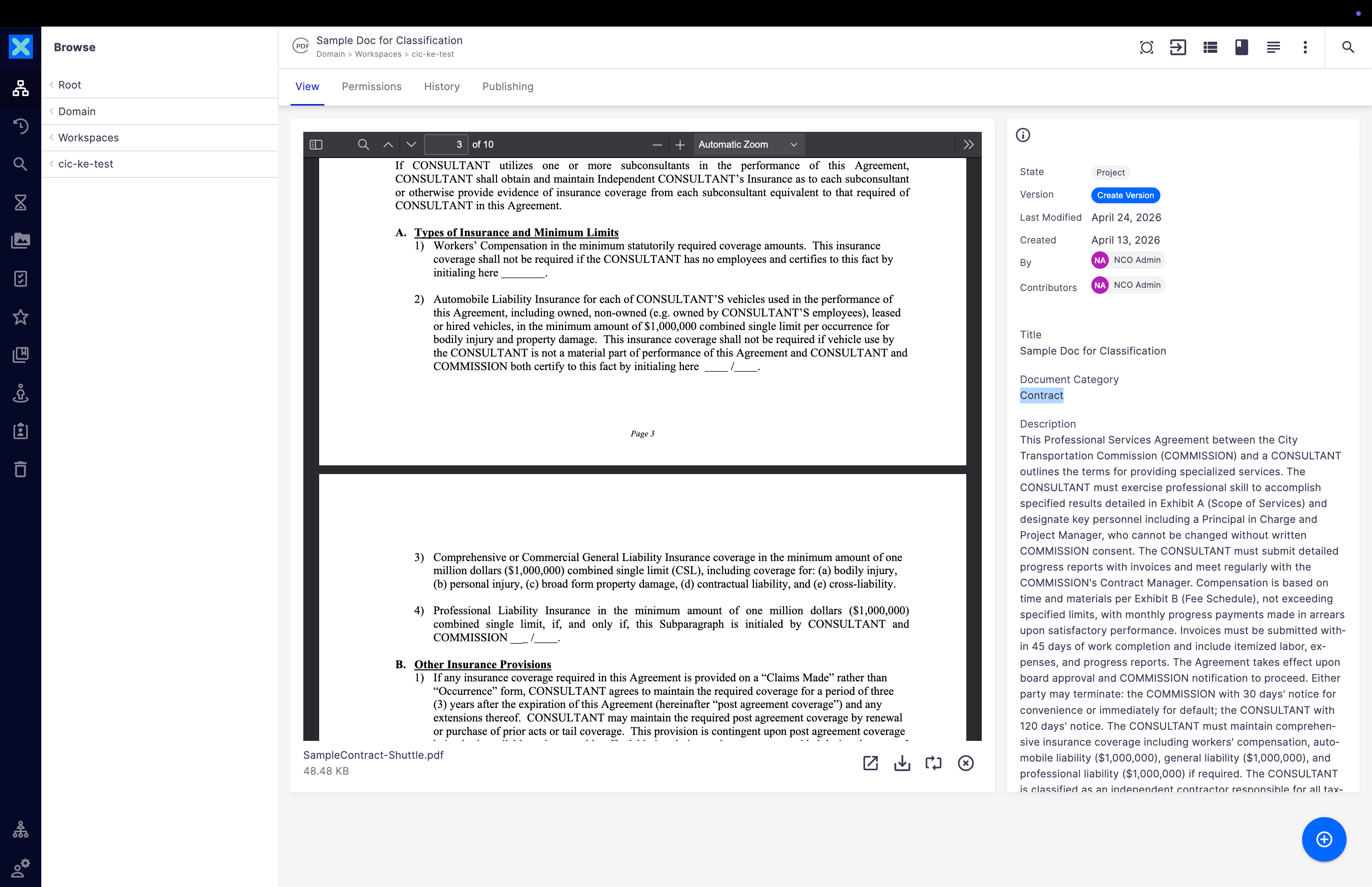
1. Document Classification
- Action Button:
Classify Document - What it does: Sends the document to the Knowledge Enrichment service and automatically categorizes the document into one of the predefined types (Contract, Invoice, Legal, Technical, Financial, Report, Policy, Resume).
- Where results appear: Metadata → Document Category field
2. Named Entity Recognition – Text
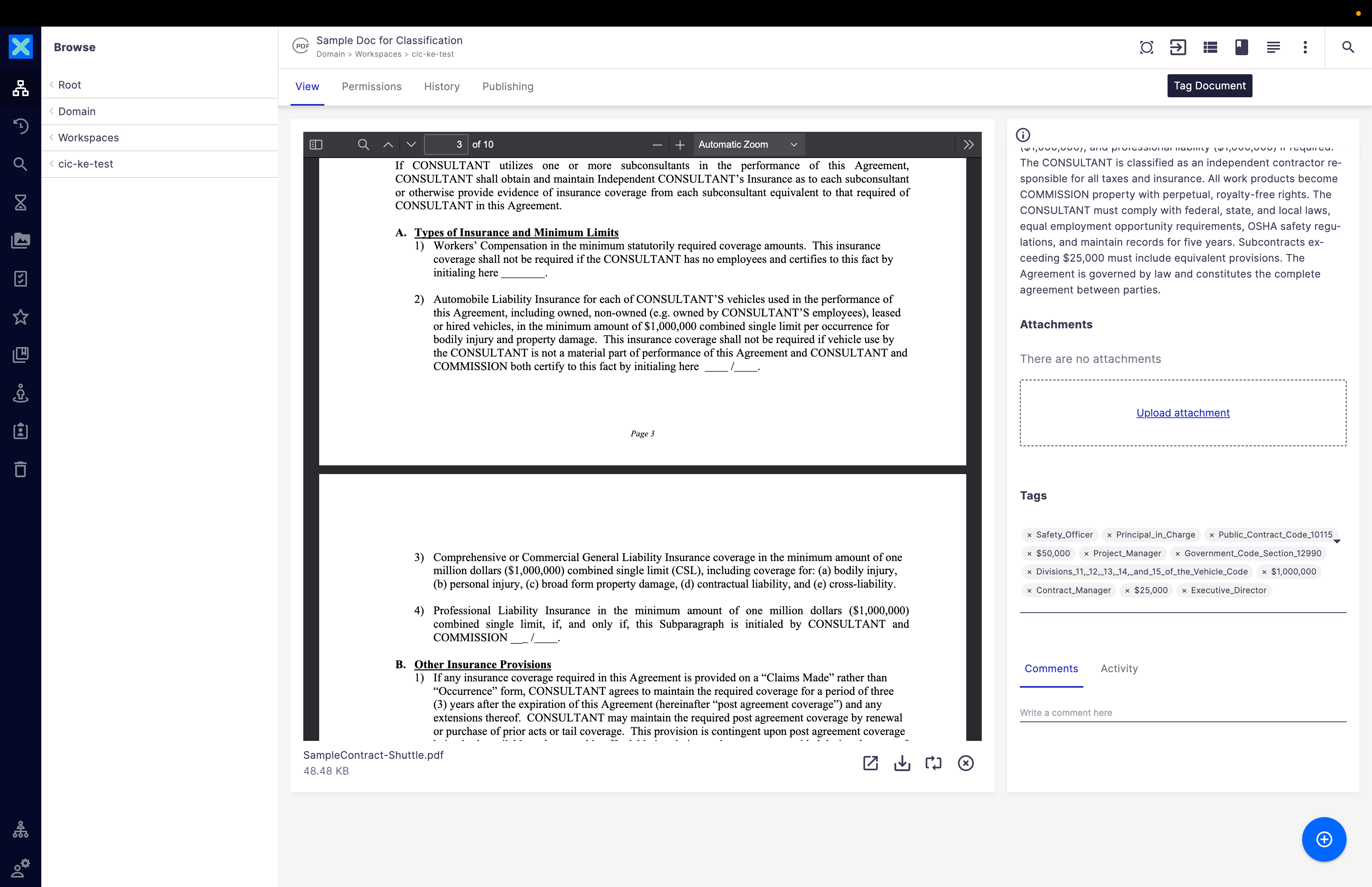
- Action Button:
Extract Named Entities - What it does: Extracts key entities from the document text (Examples of entities: People, Organizations, Locations, Dates, Products).
- Where results appear: Metadata → Tags field
3. Text Summarization
- Action Button:
Summarize Document - What it does: Automatically generates a concise summary of the document.
- Where results appear: Metadata → Description field
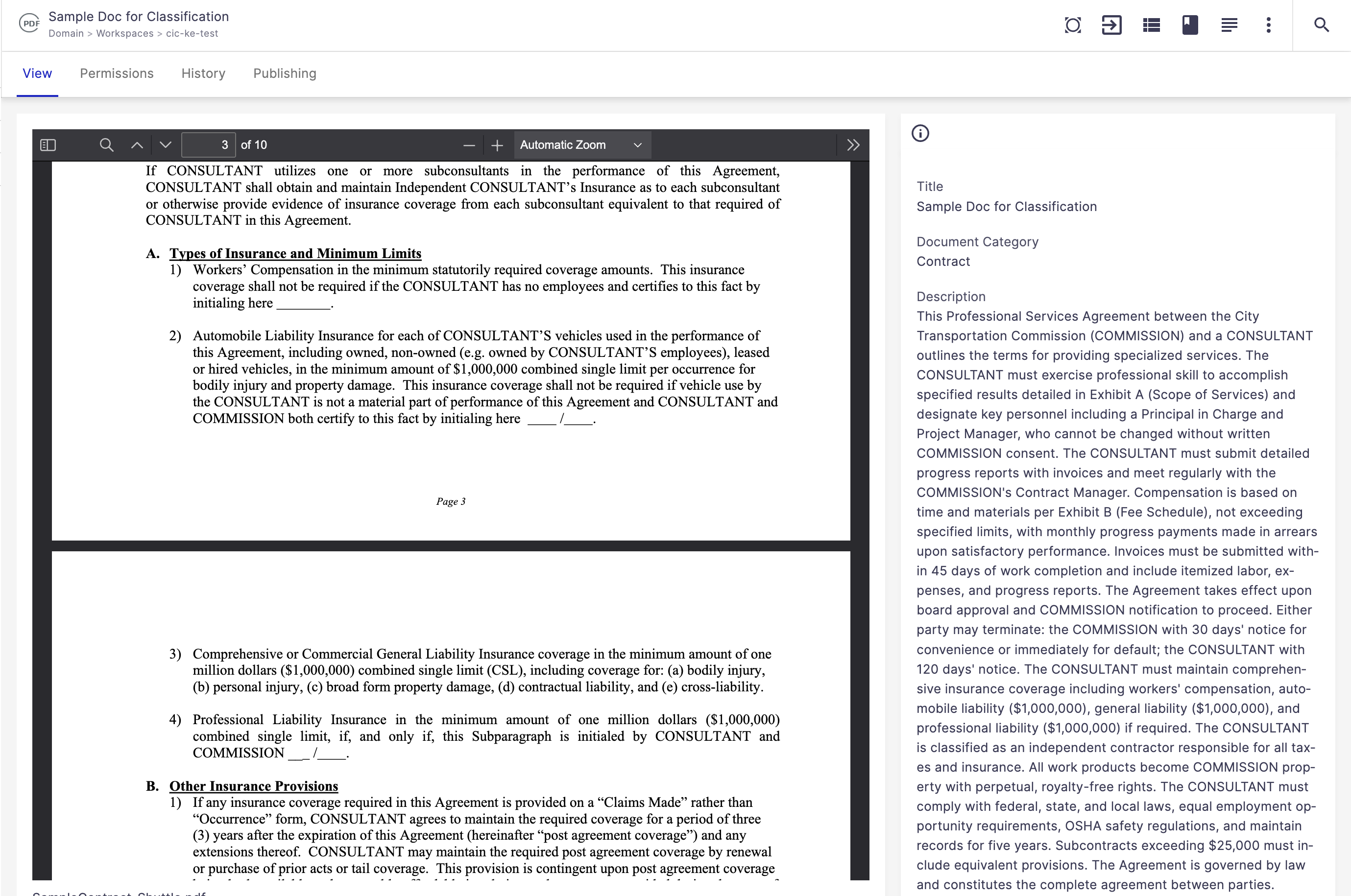
Image Use Cases
1. Image Description
- Action Button:
Describe Image - What it does: Analyzes the image content using AI and generates a natural‑language description of what the image contains.
- Where results appear: Metadata → Summary field
2. Named Entity Recognition – Image
- Action Button:
Describe Image - What it does: Identifies recognizable entities within images, such as visible objects, brands, places and landmarks, and text elements appearing in the image.
- Where results appear: Metadata → Tags field
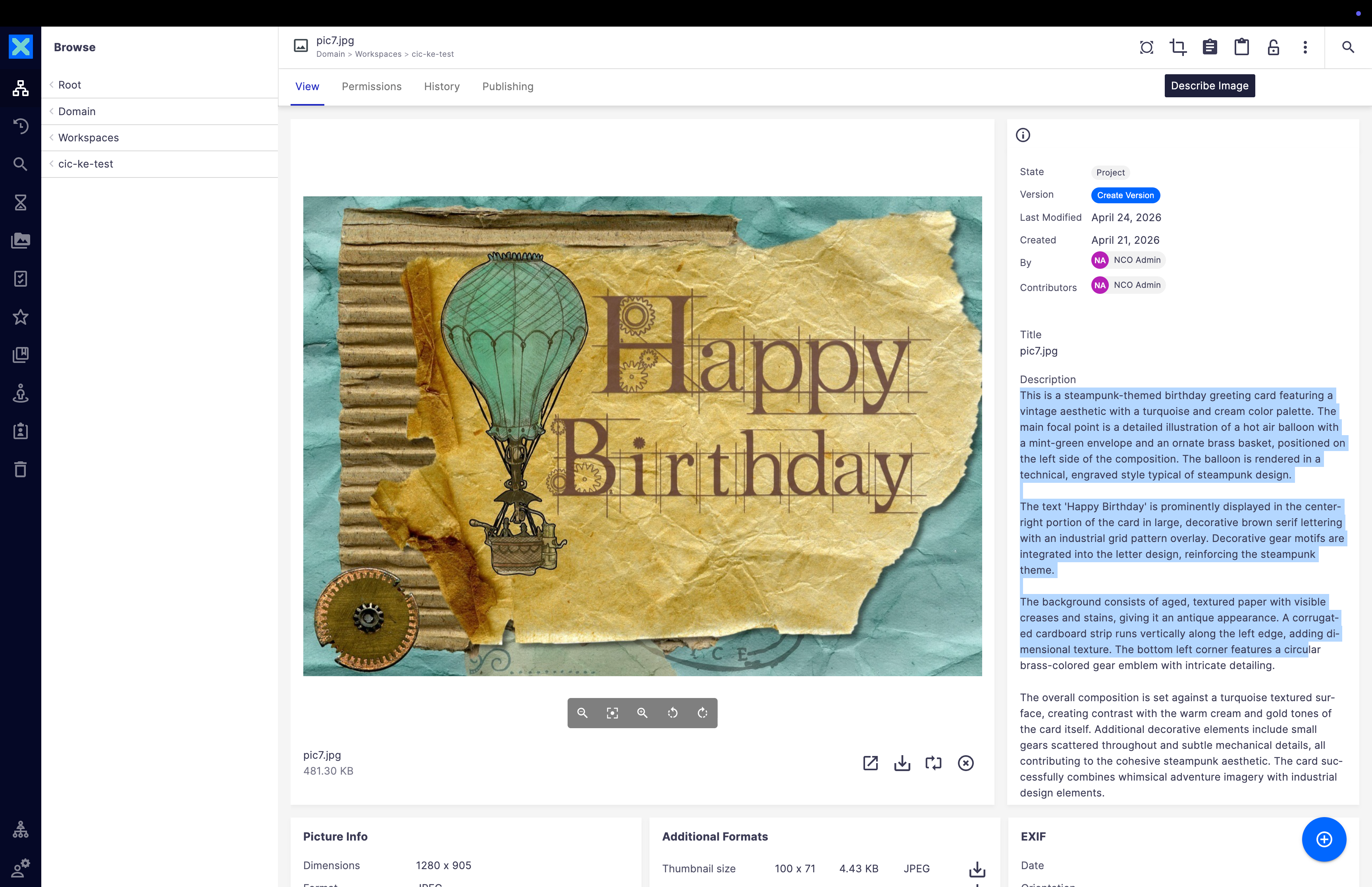
Generate and review document metadata using Knowledge Enrichment
To generate and review document metadata using Knowledge Enrichment, complete the following steps:
- Log in to the Nuxeo platform.
- Navigate to Personal Workspace or a shared workspace.
- Upload a supported document or image.
- Open the file to view its preview.
- Click the relevant Knowledge Enrichment action button.
- Review generated metadata directly on the document.
Error Handling & Notes
- Knowledge Enrichment buttons only appear for supported file types.
- If the AI service is unavailable, users will see an error notification.
- Large PDFs or high‑resolution images may take longer to process.
- Enrichment results depend on content clarity and quality.
Supported Environments
Knowledge Enrichment can be enabled in:
- Integration / Pre‑Production environments for testing
- Production environments for end‑user access
User access and permissions are managed through standard Nuxeo administration.
Value for Customers
By using Knowledge Enrichment in Nuxeo, customers can:
- Reduce manual tagging and classification effort
- Improve metadata quality and consistency
- Enable smarter search and automation
- Increase content understanding at scale
Knowledge Enrichment helps teams spend less time organizing content and more time using it.