The Nuxeo Media Manipulation connector allows users to transform media on the fly.
Transformations can be applied on the media content that is present as the main file, xpath - file:content of the document
Installation
The connector is available as a single add-on package in nuxeo marketplace.
Customers can install this just like any other add-on onto the nuxeo server instance.
Prerequisites
Nuxeo Platform – LTS-2025
Nuxeo Web UI – dependent package must be installed if not present.
Picture View generations for OriginalJpeg and FullHD are enabled.
Nuxeo S3 Binary Storage with CloudFront configured. CDN signed URL sharing must be enabled (nuxeo.media.downloadlinks.cloudfront.enabled=true). See CDN signed URLs details.
Current Scope
Supported Media Facets: Picture
Supported Functionalities: Cropping and Resizing, Addition of custom aspect ratio options, Output format selection, Download, Share – CDN signed URL, Save Manipulation as rendition, Save Manipulation as Derivative document.
Functional Overview
After installation of the package, on a given picture faceted document, for the users that have write permission, a document action - Edit Media - is enabled.

Upon clicking this icon, users will be presented with the dialog where they can perform all the transform activities on top of the images.
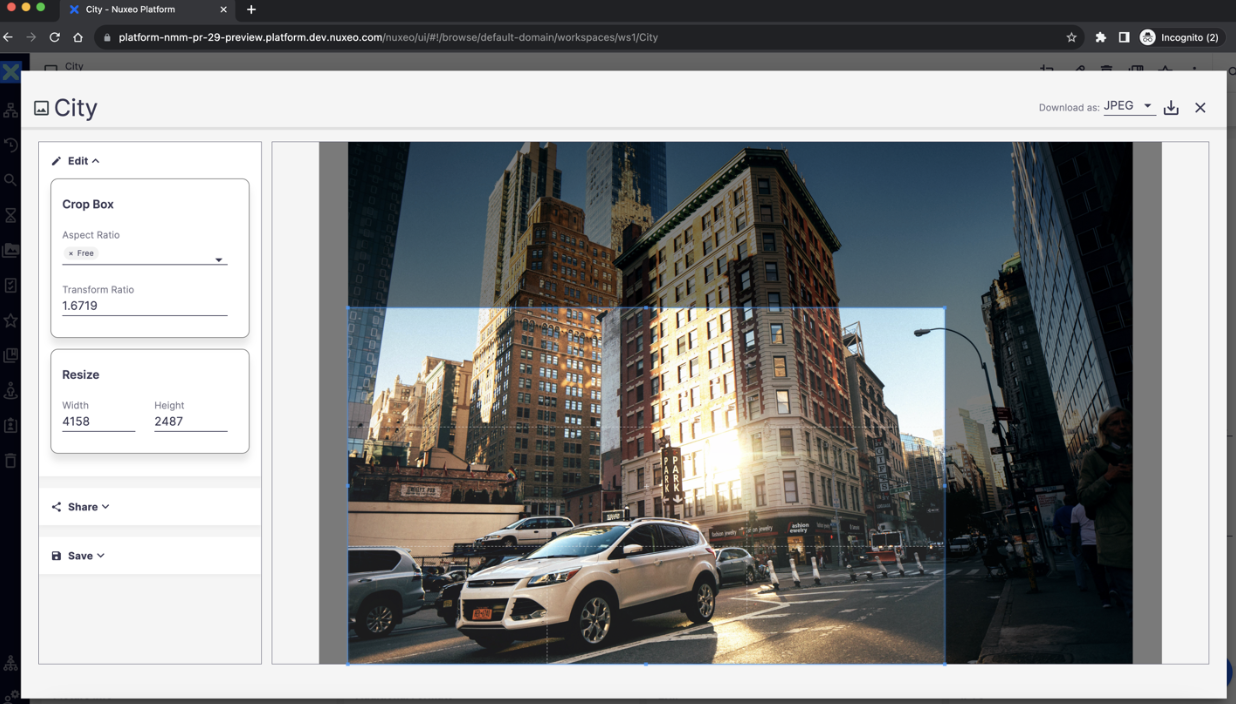
Keeping UI performance under consideration please note that the image that is loaded in the crop area is OriginalJPEG view of the actual image.
In case of large files, it is loaded with FullHD view.
All the transformations done on the FullHD view will be scaled accordingly and applied as would be for originalJPEG, resulting in the expected result.
The threshold at which this should happen is configurable and this would happen when the size of the originalJPEG rendition in MB > nuxeo.media.image.maxsize.
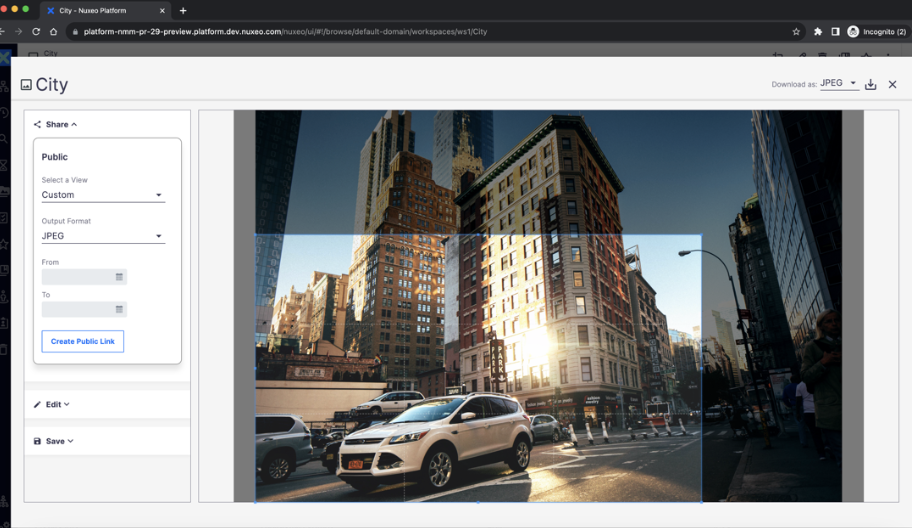
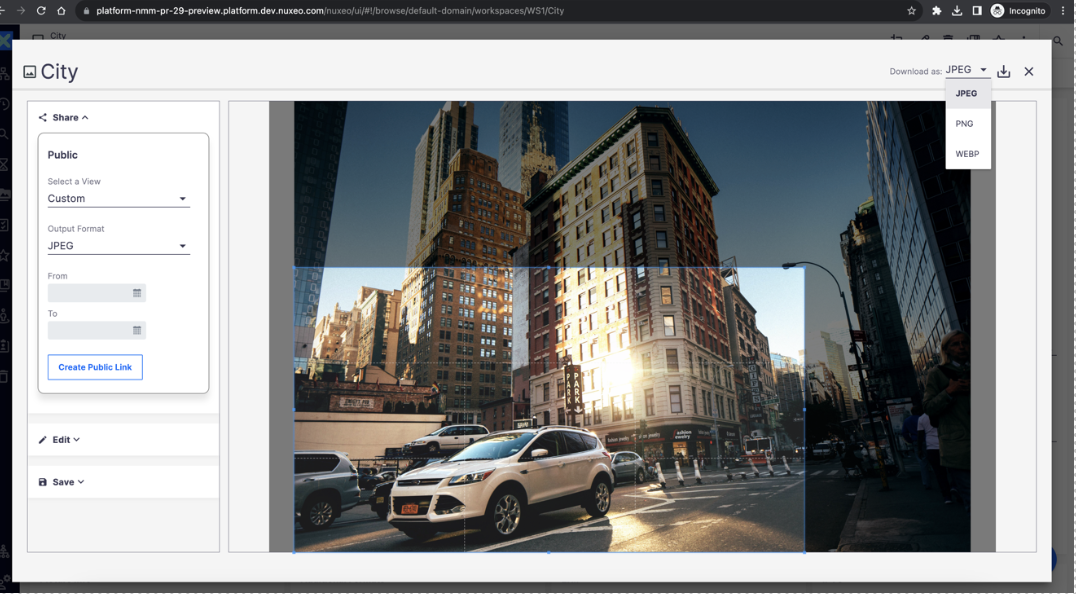
When S3 binary storage and CloudFront are configured, users can generate CDN signed URLs from the Share card to deliver stored blobs without authentication. URLs point to content served through CloudFront rather than through the Nuxeo server. Optional date fields in the Share card control document permissions; URL validity is governed by the CloudFront signature expiration.
For configuration details, see CDN signed URLs details.
Cropping, Resizing and Aspect Ratios
The crop panel displays the picture and the crop box. Crop box can be operated freely when the Aspect ratio is selected as free, which is default.
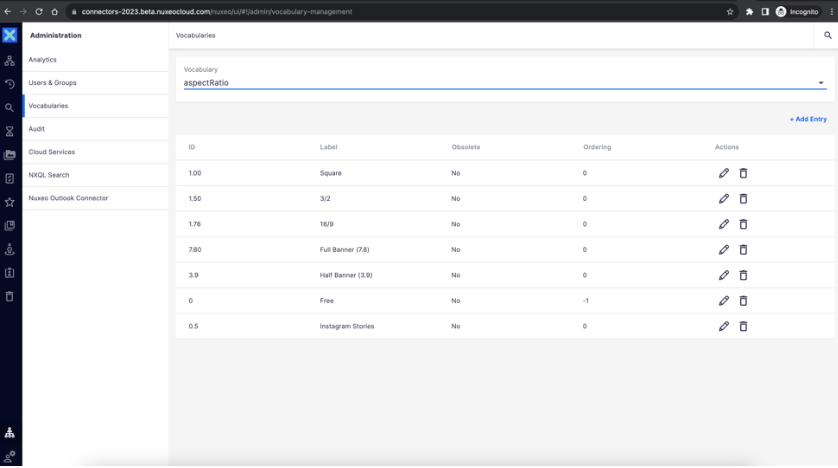
The add-on offers some out of the box aspect ratios.
As these options sourced to the vocabulary: aspectRatio, admin can configure them as desired.
Sharing
CDN signed URLs can be generated for stored blobs (main file and existing picture views such as OriginalJPEG and FullHD). These URLs do not require authentication and deliver content directly through CloudFront.
In the Share card, select the blob to share from Select a Value, then click Create CDN URL. Copy the generated URL using the copy action.
The URL remains valid until its CloudFront signature expires. Expiration is controlled by nuxeo.s3storage.cloudfront.expiration.seconds (default: 3600 seconds). Revocation is not available from the UI. A signed URL stays valid until it expires.
Note: CDN signed URLs serve stored blobs only. On-the-fly crop, resize, or format changes from the manipulation dialog are not included in the CDN URL. Use Download as or Save to persist a transformation first, then share the resulting blob if needed.
Download as
Allows to download the image applying the desired transformations in the selected output format. The following formats are supported for now: JPEG, PNG and WEBP
Saving
The desired transformation can be saved as a custom rendition in the current document or as a new derivative document.
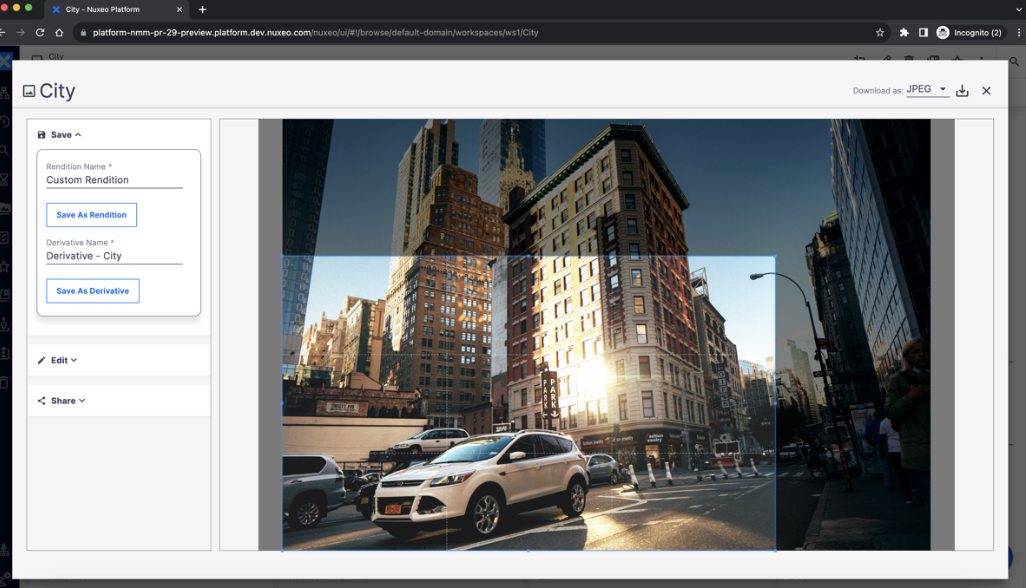
Upon using Save as rendition, the desired transformation will be saved as a new picture view of the current document. This can be seen in the additional formats section of the document details page in Web UI. User can download the same from here.
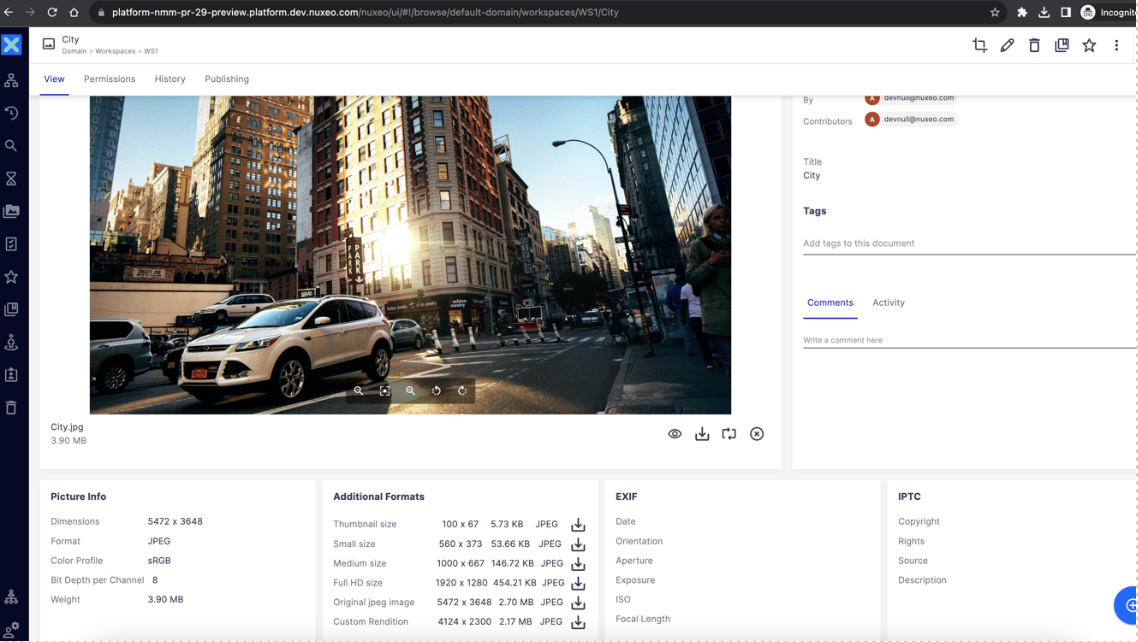
Custom rendition is seen in additional formats section.
Upon save as derivative, a new document will be created, copying from the current document but containing the main file as the desired transformed image. The derivative document name can be specified in the derivative name field in the media manipulation dialog.
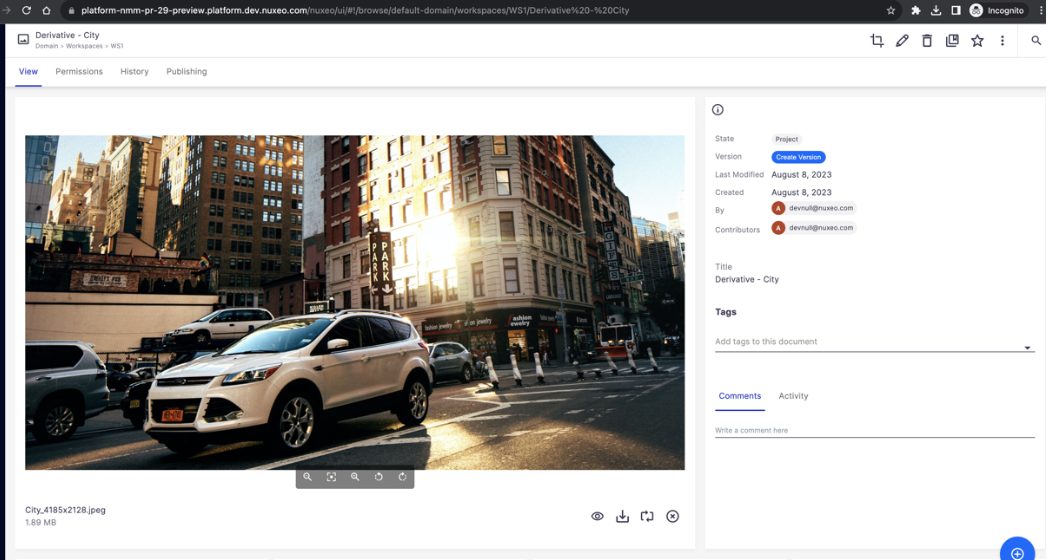
A new document can be seen with name: Derivative – City
Known Limitations
Large Images could cause significant user wait time when trying to invoke dynamic transformation.
Possible timeouts during the transformation of large sized images.
The transaction timeout needs to be increased explicitly in such cases using the config key:
nuxeo.media.transform.transaction.timeout.seconds
CDN signed URLs are limited to stored blobs (main file and picture views). On-the-fly transformations cannot be shared via CDN URL.
CDN signed URLs cannot be revoked before their CloudFront signature expires.
Future Scope
Support of additional media and functionalities.
Asynchronous handling of invoked transformation requests with a dashboard to check the status.
CDN-based image editing, resizing, or on-the-fly transformation capabilities — beyond the current CDN signed URL delivery for stored blobs.